
Hi music lovers! Your next PowerBeatsVR workout can start with a song you already enjoy. Put a supported local audio file on your device, find it in LOCAL, choose your settings and let the generator build a workout layout.
Here’s how to get that first track ready. We’ll focus on a simple starting file, then cover the differences between Quest, PC and PSVR2.
Pick your first song
Start with a normal MP3 that plays correctly outside the game. Use a file you own or have permission to use; Spotify and Apple Music offline downloads generally aren’t ordinary audio files you can import.
The official FAQ gives this platform-specific format list:
| Platform | Listed formats |
|---|---|
| PC | MP3, WAV, FLAC, OGG |
| Meta Quest | MP3, WAV, OGG |
| PS5 / PSVR2 | MP3 |
Another Quest section lists FLAC too. For a straightforward first test across platforms, use MP3; check the current instructions for your build before choosing a less common format.
Quest: copy the file, then open LOCAL
- Connect your headset to a computer with a USB cable that supports data transfer.
- Accept the file-access request in the headset when it appears.
- Copy your supported song into an accessible folder, such as Music.
- Open PowerBeatsVR and switch to the LOCAL tab.
- Grant the app’s requested file access, browse to the song and select it.
- Choose a comfortable difficulty and movement mix, then start.
This uses our built-in music feature. You don’t need to mod the game, and you don’t need Link or Air Link just to copy a song. Headset software can move permission controls around, so use the FAQ’s current instructions if your menus differ.
You can also download a permitted music file with the headset browser and browse to its download folder. The same format and access requirements apply.
PC and PSVR2: use your platform’s loading steps
On PC, keep your music in a local folder and find it from LOCAL. The PC version supports the wider format list above.
On PS5, use MP3 and find the available music folder from LOCAL. The FAQ currently lists custom JSON layout transfers as unsupported on PS5, so keep music playback and map sharing separate when planning your setup.
Shape the workout around the song
Start with an easy difficulty and a movement mix you can perform comfortably. Play the track, then change one setting at a time. You choose the settings; the generator doesn’t automatically assess your fitness or energy.
If the beat feels off, the FAQ explains BPM and offset adjustments. For more detailed layout work, our level-editor tutorial takes you through the creative tools.
If the track doesn’t appear
Check the actual file extension, confirm it plays outside PowerBeatsVR, and make sure it’s stored locally in a folder the app can access. On Quest, review the file/storage permissions. A normal MP3 makes a useful first troubleshooting test.
For compatible custom layouts, follow the FAQ’s JSON file and matching-name instructions. A layout from another game isn’t automatically compatible, and sharing a layout doesn’t give permission to share its music.
Need a hand getting started? Visit our music FAQ or join the Discord community. And once you’re playing, we’d love to hear which song you chose first.
If you would like to try these steps in the game itself, take a look at PowerBeatsVR on Quest or Steam.
Enjoy your soundtrack,
Team PowerBeatsVR
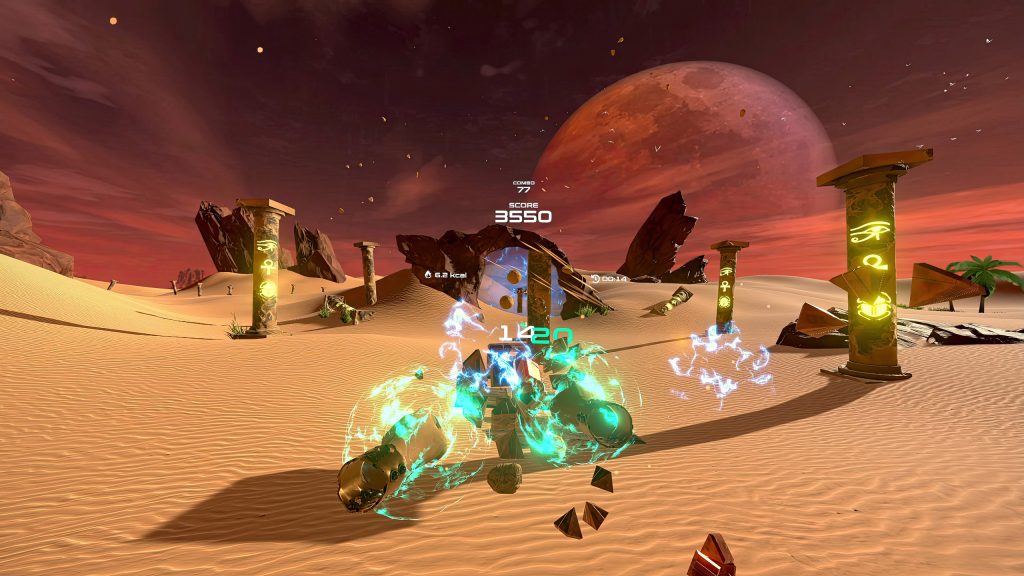
Header and in-article images are actual archived PowerBeatsVR captures; appearance may differ by platform and version.